


Love it or hate it?
Email has been a revolution in the world of communication. It’s fast, universally used, and can transmit not just words, but photos and attachments, such as documents, videos, and spreadsheets. All of these features have proven to be very valuable in today’s world, both for business and personal use.
For the most part, email is free and so readily available, and it’s easy for us to find it overwhelming. Hence, many ask how they can manage their inbox and not become enslaved to the “you’ve got mail” sounds. Technology has moved on, and email is no longer tied to our computers — we carry it wherever we go, nestled inside our smartphones and watches.
Now, of course, we need to recognise that those who use email in their workplace may have very important emails to manage on a daily basis, so this article is not about deleting emails willy-nilly. We need a structured approach, which can also be applied to personal email accounts. Whatever you do, make sure you have separate email addresses for work and your private use. That’s probably a given if you work for an employer, but self-employed persons might not have such a clear dividing line. For those individuals, if you are mixing business and personal emails, stop now and get that sorted. It’s too much of a distraction mixing the two worlds up.
The First Two Steps to Minimise Email Burnout
Step One
Use the unsubscribe button!
We can all end up with too many marketing emails.
If, like me, you like a discount, it’s likely that when visiting a website, you have been offered one on your first purchase. This will be in return for signing up for marketing material. I wait until the goods have arrived. I unsubscribe when the next email from that company arrives, unless I find it really useful. Many email systems, such as Apple and Gmail, let you unsubscribe without having to open the email and find the unsubscribe link. For Gmail, hover your cursor over the email list, and ‘unsubscribe’ will appear, if this is possible. Apple Mail will carry an unsubscribe option at the top of the email.

I have dramatically reduced the amount of email I receive since taking this approach. I will explain further on how you can manage the remainder of any marketing emails that you want to stay subscribed to.
Gmail and Apple are fairly good at removing junk mail before it even appears on our system. The junk mail we do receive is a fraction of what there could be. We are mostly responsible for signing up for things, and then, unless we ticked the box not to hear from other companies (when applicable), we get more than we bargained for.
Throw away email addresses.
With Gmail, you can add +whateveryoulike after your main address and before @gmail.com. You could create one for each company you sign up for. For example: google+abcltd@gmail.com. If any other company used that email address, you would know that it had been passed on. Not good if you had ticked the no box to sharing your data.
Apple allows you to create several custom email addresses, and if you have an iCloud+ account, the ability to hide your email address. To do this, open the email composer and in the ‘from’ box, select Hide My Email from the dropdown menu. If you sign into websites using Apple login, such an email address is created for you. You can see what addresses have been created in Settings - Apple Account - iCloud.
Step Two
When I was working, it was common for some people to email with a simple question. I would reply, and they would follow up with another question, and so it would go on. They were using the email as one would use a messenger app. Our time can be quickly caught up in a toing and froing of emails, creating a long thread, and a lot of time used up. Try not to let this happen. Telephone or email the person doing this early on, and ask them to call you. Some get lazy and rather than make a call or compose one email with all the information, they would rather sit looking busy by sending emails.
Managing Your Email
Here are some ways you can control your inbox and make it effective.
Both Apple and Gmail have built-in categories. Here, the system will place emails into separate tabs such as these that Apple uses: Primary, Transactions, Updates, and Promotions. If the system gets it wrong, you can tell it which category an email should be in.
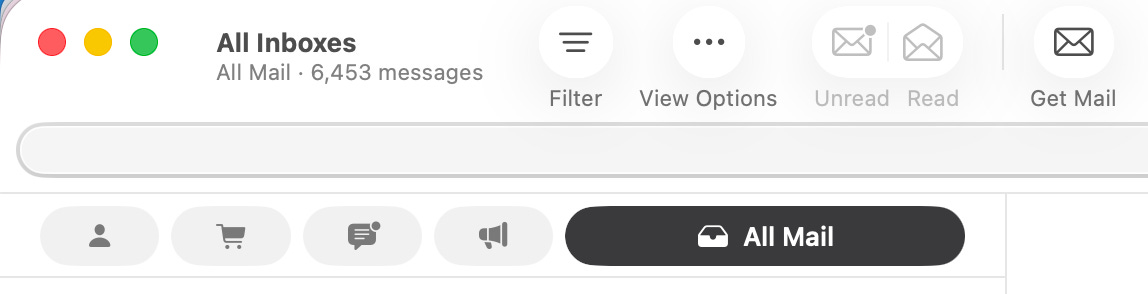
Gmail has similar features and uses these tabs: Purchases, Social, Updates, Forums, and Promotions.

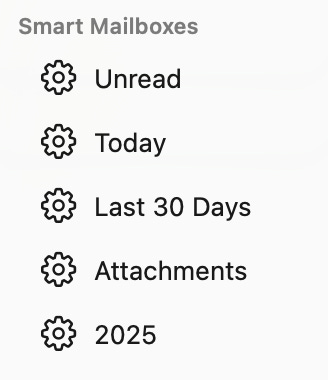
Smart boxes — Apple uses this so that you can place emails automatically in a category based on criteria that you choose. Gmail has filters to do something very similar. I use these for unread, today, last 30 days, emails with attachments, and the current year.
There are also ways to mark emails with coloured flags (Apple) or other symbols to show that they are important or something needs to be done with them. I like the reminder system so that I can set an email to reappear on another day and time.
Folders
These can be very useful, especially for work/business emails. Create folders where you want to store emails to work on or find more easily. You might create folders such as: Accounts, Customers, Contracts, Employees, Marketing, To Do, and so on. Obviously, don’t make the list too long!
Inbox Zero
I adopted the Inbox Zero concept quite a few years ago. The idea is that by the end of the working day, every email would either have been actioned and moved to the appropriate folder or was in a to-do folder ready for the next day. It was satisfying to turn off the computer with nothing left showing in the inbox. The next morning there would be new emails waiting with nothing left clogging up the view. This was using Microsoft Outlook.
Time spent checking email
Emails can be distracting. In some jobs there are workers who are there to receive and reply to, or action emails immediately, so my next piece of advice is not for them.
Most of us, though, have email as a useful tool and part of our work. Emails should not normally be received in an emergency situation — such events should warrant being phoned. Therefore, there is nothing wrong with only checking for new emails at certain times. For example, first thing in the morning, halfway through the day, and maybe an hour before finishing work. For others, checks more closely together might be required.
Email will come in at any time and your email system will notify you. However, you can set it so that you are either not notified, or as I do with my Apple Mail (it also receives my Gmail), it is set to check for new emails once an hour. That way, I am not distracted from what I am doing. Of course, I could turn off the email during this time, but I find an hourly check doesn’t negatively affect me.
If you are office-based, make sure you leave your email behind at the end of work. Don’t have it on your phone and take it home with you! It’s important to switch off.
It’s also important to get to know the features of your email system. They have become more adjustable and manageable over the years. If you click on settings and, in some cases, advanced settings, you will be amazed at what you can do to manage your email. You can also change the way your email layout looks on screen. If you need help, check out YouTube, and you will find plenty of videos to explain the many features of email systems. As you learn about these built-in tools, you will develop a method that suits you best to manage your emails.
Be wary of your spam system.
Although it would be nice to think we need never look at the spam folder, be wary. Occasionally, an important email might end up there. Maybe there is an attachment or wording that confused the algorithm. It’s not too common nowadays, but it can happen. If you see a genuine email, you can mark it as ‘not spam’ and send it to the inbox. Never open spam emails just for inquisitiveness. That might let the sender know you exist, and you could end up with more spam. Most systems will delete spam after a short time, so check every now and then for any errors.
How are you doing with managing your email inbox? Let me know in the comments. It’s always good to hear from my readers.
Thank you for reading this story. If you haven’t subscribed yet, please use the subscribe button below. It’s always free to read all of my stories, with a paid option for anyone who wishes to help support what I do. Or you can use this Buy Me a Coffee link.